StyleTokenHighlighter
A Sublime Text plugin that adds Notepad++'s "Style all occurrences of token" and occurrence navigation features.
By
leoshome
Created
Installations minus removals
Upgrades
- 11 installs
- 1 stars
Links
Versions
1.3.0
·
Style Token Highlighter
A Sublime Text plugin that adds Notepad++'s "Style all occurrences of token" feature. Highlight tokens with 9 color styles and navigate between occurrences.
Features
- 9 Color Styles: Highlight different tokens simultaneously using standard syntax scopes (String, Comment, Keyword, etc.).
- Smart Go: Jump to the Next or Previous same highlight of a token.
- Granular Control: Clear specific styles or wipe all highlights with one click.
Screenshots
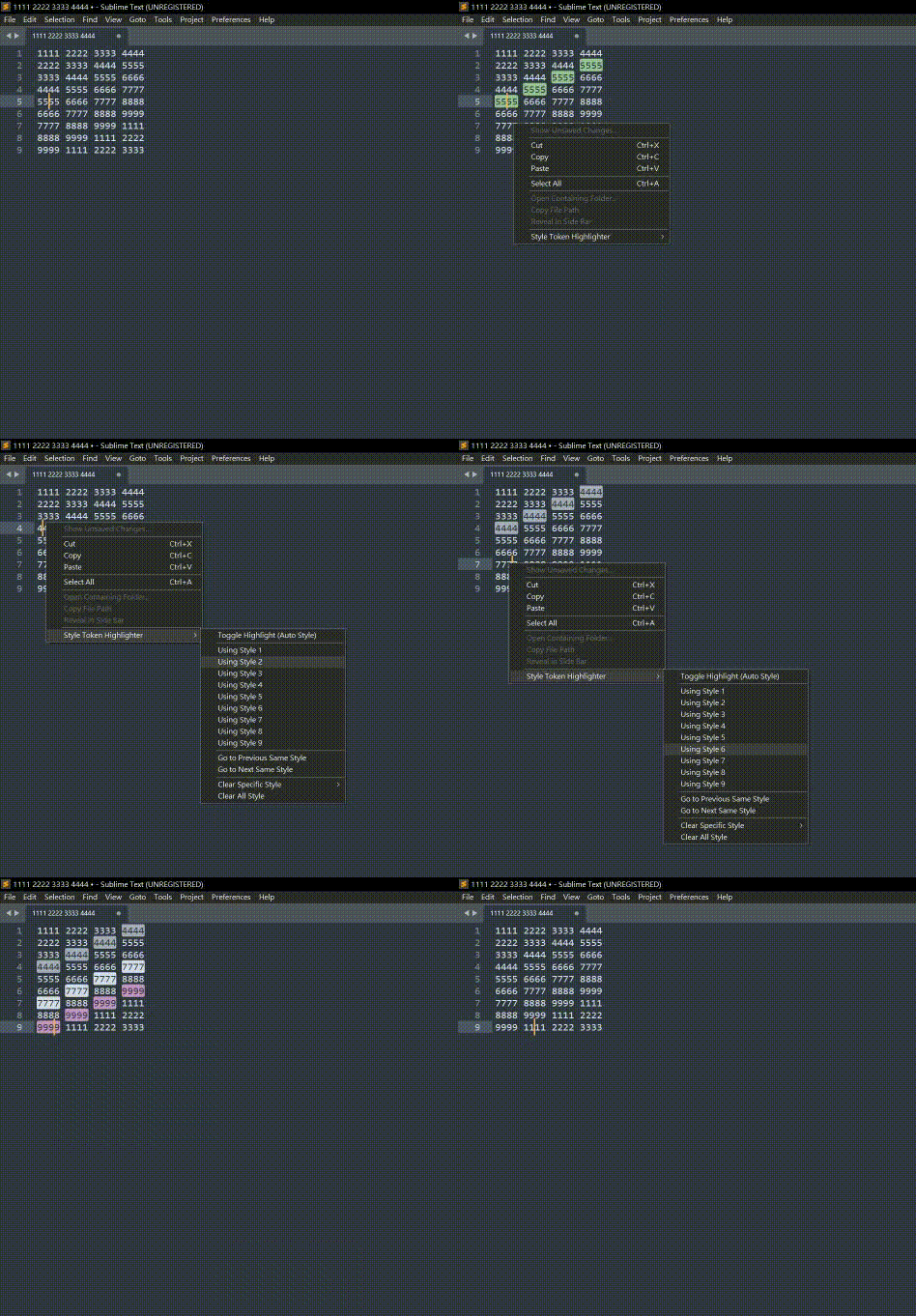
Highlighting Tokens
Select a word, right-click, and choose a style. All occurrences will be highlighted.
Installation
Via Package Control (Coming Soon)
- Open Command Palette (
Ctrl+Shift+P/Cmd+Shift+P). - Select
Package Control: Install Package. - Search for
StyleTokenHighlighterand press Enter.
Usage
All commands are available via the Command Palette (Ctrl+Shift+P / Cmd+Shift+P) and the right-click context menu:
- Highlight: Select a word → Right-click →
Style Token Highlighter→ Choose a style (1-9) - Toggle: Select a word → Command Palette →
StyleToken: Toggle Highlight (Auto Style)(auto-picks next available style) - Go: Place cursor on a highlighted token → Right-click →
Go to Next/Previous Same Style - Clear: Right-click →
Clear Specific StyleorClear All Style
Settings
You can customize the highlight colors via Preferences > Package Settings > StyleTokenHighlighter > Settings.
The colors array accepts any valid Sublime Text scope name. Default:
{
    "colors": [
        "string",
        "comment",
        "keyword",
        "constant",
        "support.function",
        "variable",
        "entity.name.class",
        "invalid",
        "storage.type"
    ]
}
Changing Colors
Replace any scope name with a different one. The actual color depends on your color scheme (e.g., Monokai, Mariana). Common scopes:
| Scope | Typical Color |
|---|---|
string |
Green |
comment |
Gray |
keyword |
Purple/Blue |
constant |
Orange |
constant.numeric |
Orange |
variable |
Red |
entity.name.function |
Blue |
entity.name.class |
Yellow |
entity.name.tag |
Red |
support.function |
Blue |
storage.type |
Purple |
invalid |
Red background |
markup.heading |
Bold |
punctuation |
White/Gray |
constant.character.escape |
Cyan |
Adding More Colors
Add more items to the array — there's no limit. Style 10, 11, 12... will become available automatically:
{
    "colors": [
        "string",
        "comment",
        "keyword",
        "constant",
        "support.function",
        "variable",
        "entity.name.class",
        "invalid",
        "storage.type",
        "entity.name.function",
        "entity.name.tag",
        "constant.numeric"
    ]
}
Finding Available Scopes
To see what scopes are available in your color scheme:
- Place the cursor on any word in your code
- Press
Ctrl+Alt+Shift+P(Windows/Linux) orCmd+Alt+Shift+P(macOS) - The status bar shows the scope at that position (e.g.,
source.python keyword.control)
Use these scope names in your colors array.
Key Bindings
This package doesn't ship key bindings to avoid conflicts with your existing shortcuts. To set up your own, open Preferences > Key Bindings and copy the examples below. Customize the key combinations to your liking.
// Toggle highlight (auto-picks next available style)
{ "keys": ["primary+k", "primary+h"], "command": "style_token_toggle_highlight" },

// Highlight with specific style (color_index 0-8)
{ "keys": ["primary+k", "primary+1"], "command": "style_token_highlight", "args": {"color_index": 0} },
{ "keys": ["primary+k", "primary+2"], "command": "style_token_highlight", "args": {"color_index": 1} },
{ "keys": ["primary+k", "primary+3"], "command": "style_token_highlight", "args": {"color_index": 2} },
{ "keys": ["primary+k", "primary+4"], "command": "style_token_highlight", "args": {"color_index": 3} },
{ "keys": ["primary+k", "primary+5"], "command": "style_token_highlight", "args": {"color_index": 4} },
{ "keys": ["primary+k", "primary+6"], "command": "style_token_highlight", "args": {"color_index": 5} },
{ "keys": ["primary+k", "primary+7"], "command": "style_token_highlight", "args": {"color_index": 6} },
{ "keys": ["primary+k", "primary+8"], "command": "style_token_highlight", "args": {"color_index": 7} },
{ "keys": ["primary+k", "primary+9"], "command": "style_token_highlight", "args": {"color_index": 8} },

// Navigate between highlights
{ "keys": ["primary+k", "primary+n"], "command": "style_token_go_next" },
{ "keys": ["primary+k", "primary+p"], "command": "style_token_go_prev" },

// Clear all highlights
{ "keys": ["primary+k", "primary+0"], "command": "style_token_clear_all_highlight" }
Note:
primarymaps toCtrlon Windows/Linux andCmdon macOS.
For more information on key bindings, see the Sublime Text documentation.
Context Menu
This package ships a context menu by default. To customize or disable it:
- Open the
Packagesdirectory (via Preferences > Browse Packages...). - Create a
StyleTokenHighlighterdirectory inside it (if it doesn't exist). - Create a
Context.sublime-menufile in that directory.
To disable the context menu completely, put this in the file:
[]
To customize it, copy the original menu and remove or modify the entries you don't need.
Your copy overrides the one shipped with the package. See the official documentation for more details.
Attribution
This plugin was written with AI assistance and reviewed by the author.
License
This project is licensed under the MIT License - see the LICENSE file for details.
