NukeToolsST
A Sublime Text package that allows to send python or blinkscript code to be executed inside Nuke.
By
virgilsisoe
Created
Installations minus removals
Upgrades
- 147 installs
- 8 stars
Links
Versions
0.3.0
·
1. Nuke Tools ST README

This package is a companion extension for NukeServerSocket and is based on NukeTools.
A Sublime Text package to send Python or BlinkScript code inside Nuke.
1.1. NukeServerSocket
Download the companion plugin:
1.2. Features
- Execute code inside Nuke from a machine in your local network.
- Get the output of Nuke code execution inside Sublime console.
- When used locally (same machine), the package requires no configuration, but running NukeServerSocket inside Nuke.
- Specify a custom address when the connection is from/to another computer.
- BlinkScript support.
- Nuke/Hiero Python stubs for auto-complete suggestions, via LSP-pyright.
1.3. Installation
The preferred method of installation is via the Package Control.
- Package Link
- Inside Sublime, invoke the Command Palette -> Install Package -> NukeToolsST.
1.4. Usage
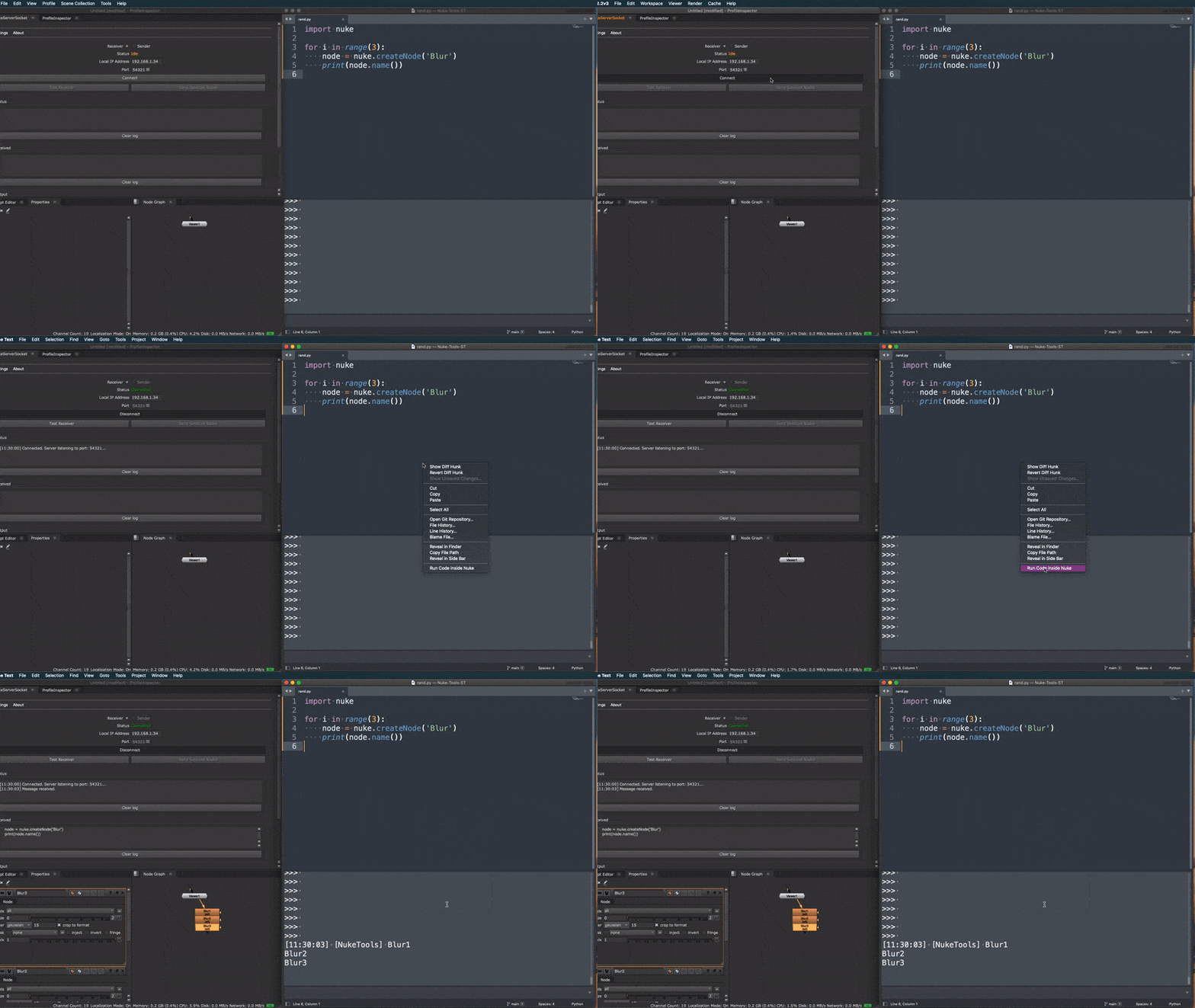
Once NukeServerSocket is up and running, you can execute your python/blink file with the new command run_nuke_tools or
via the right-click context menu. Commands
1.5. BlinkScript
NukeServerSocket version needs to be >= 0.1.0 for this to work.
The extension will create a blinkscript node named after the active file. If the node already exists, it will update the code and recompile it.
The accepted file extension code are .cpp or .blink.
1.6. Connection
No settings are necessary if the connection is on the same computer. The package will automatically connect to the
localhost and use the port configuration found inside $HOME/.nuke/nukeserversocket.json.
Behind the scene, NukeServerSocket, updates the configuration value every time it's changed inside the plugin.
If the connection is between different computers, you can change the port, and hostname, manually via the package settings.
Keep in mind that after you specify the addresses manually, they will always take over the defaults one.
1.7. Package Settings
nss_port:integerSet a different value for the connection. The port should match the one from NukeServerSocket.
nss_hostname:stringSame as
nss_port. The host could be the local host or the local IP.nss_disable_context_menu:boolDisable Sublime context menu entry if not needed. Default's to
false.
Example
{
  "nss_port": 54321,
  "nss_hostname": "192.168.1.60",
  "nss_disable_context_menu": true
}
1.8. Commands
The following command will be available: run_nuke_tools.
The package adds a new entry Run Code inside Nuke, to the context menu (right-click) when the active file ends with one
of the following extensions:
.py.cpp.blink
1.9. Key Bindings
By default, the package does not include any key bindings. You can add them by following the Sublime Text Key Bindings guide.
Example
[
    {
        "keys" : ["ctrl+alt+n"],
        "command" : "run_nuke_tools"
    }
]
1.10. Python stubs
Sublime Text gets auto-complete for the Nuke and Hiero Python API through the nuke-python-stubs and a language server.
Install the LSP and LSP-pyright packages via Package Control.
Download
nuke-python-stubs.zipfrom the latest release and extract it into a folder, for example~/.nuke/nuke-python-stubs. The folder should containnuke,nukescriptsandhiero.Open Preferences -> Package Settings -> LSP -> Servers -> LSP-pyright and add the folder to
python.analysis.extraPaths. Use the full path:{ "settings": { "python.analysis.extraPaths": ["/Users/you/.nuke/nuke-python-stubs"] } }Write
import nukein a Python file and you should see the auto-complete suggestions.
To enable the stubs for a single project instead, add the same setting to your .sublime-project file under settings -> LSP -> LSP-pyright -> settings.
1.11. Overview