MarkdownPreviewOverlay
In-editor Markdown preview & reading mode for Sublime Text. Show preview inside the same tab without external browser or split panes
By
flashmodel
Created
Installations minus removals
Upgrades
- 840 installs
- 10 stars
Links
Versions
0.1.5
(>ST4049)
·
MarkdownPreviewOverlay

MarkdownPreviewOverlay is an editor-native Markdown preview and reading mode for Sublime Text. It renders formatted Markdown directly inside your active tab—no external browser, no split-pane, and zero context switching.
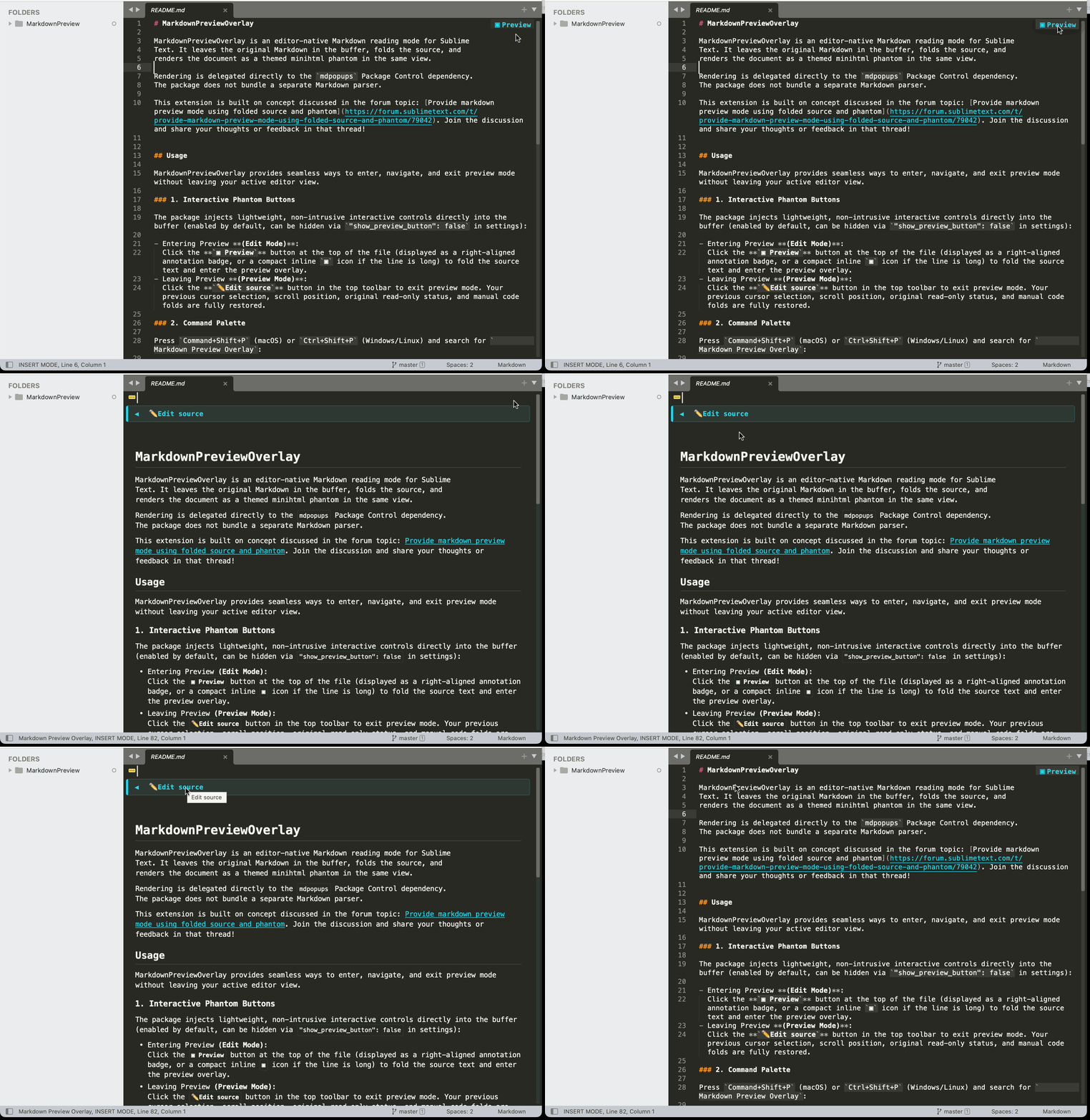
This overlay concept was originally designed as the chat preview feature for TermMate, and extracted into a standalone package as discussed in the forum topic: Provide markdown preview mode using folded source and phantom. Join the forum and share your feedback in that thread!
Features & Capabilities
Compared to traditional external browsers or split-pane previewers, MarkdownPreviewOverlay renders your Markdown preview directly inside the same editor view while keeping your plain-text workflow intact:
- Zero Context-Switching: Read and edit in the exact same view—never leave Sublime Text or juggle external browser windows.
- No Split-Pane Clutter: Maximizes your entire editor width without dividing the screen into cramped columns or causing premature line wrapping.
- Exact Scroll & Cursor Preservation: Seamlessly preserves and restores your exact cursor positions, active selections, viewport scroll offset, and manual code folds when toggling modes.
- Lightweight & Theme-Adaptive: Powered directly by Sublime Text’s built-in
minihtmlengine (mdpopups) with zero background servers, minimal memory overhead, and automatic color scheme alignment. - Full Complex Markdown Support: Seamlessly renders complex Markdown constructs, featuring a custom table engine that auto-adapts to your viewport width, along with syntax-highlighted code blocks, blockquotes, and nested lists tailored for miniHTML.
Note: Rendering is delegated directly to the
mdpopupsPackage Control dependency without bundling a separate Markdown parser.
Installation
The easiest way to install is via Package Control:
- Open the Command Palette:
Command+Shift+P(macOS) orCtrl+Shift+P(Windows/Linux). - Select
Package Control: Install Package. - Search for
MarkdownPreviewOverlayand pressEnter.
Usage
MarkdownPreviewOverlay provides seamless ways to enter, navigate, and exit preview mode without leaving your active editor view.
1. Interactive Phantom Buttons
The package injects lightweight, non-intrusive interactive controls directly into the buffer for saved files (enabled by default, can be hidden via "show_preview_button": false in settings):
- Preview Mode:
Click the
▣ Previewbutton at the top of the file (displayed as a right-aligned annotation badge, or a compact inline▣icon if the line is long) to fold the source text and enter the preview overlay. - Edit Mode:
Click the
✏️Edit sourcebutton in the top toolbar to exit preview mode. Your previous cursor selection, scroll position, original read-only status, and manual code folds are fully restored.
2. Command Palette
Press Command+Shift+P (macOS) or Ctrl+Shift+P (Windows/Linux) and search for Markdown Overlay (or type mdo):
| Command | Description |
|---|---|
Markdown Overlay: Toggle |
Toggles seamlessly between Preview Mode and Edit Mode. |
Markdown Overlay: Preview Mode |
Enters the rendered preview mode for the active Markdown document. |
Markdown Overlay: Edit Mode |
Exits preview mode and returns to editing the source buffer. |
Markdown Overlay: Refresh |
Forces a re-render of the preview layout (useful after resizing the window). |
Note for Unsaved Buffers: To keep scratch view clean, the inline
▣ Previewbutton is only displayed for saved files on disk. For unsaved or untitled buffers, enter preview mode using the Command Palette or a keyboard shortcut.
Behavior & Document Lifecycle
- Read-only Safety: Preview mode makes the buffer temporarily read-only to prevent accidental edits while viewing formatted text.
- Buffer Integrity: Source folding uses standard Sublime Text region folding without modifying the buffer text or polluting the undo history.
- Unsaved Buffers & Scratch Pads: The inline preview button is intentionally omitted on unsaved buffers or scratch pads to prevent visual clutter; use the Command Palette or a keyboard shortcut to preview them anytime.
- Auto-Refresh: If the document is modified or saved, the preview updates automatically with debounced re-rendering.
- Local Images Only: Only local image files are rendered; remote web images are not downloaded; resolving local relative image paths is enabled by default (disable via
"resolve_image_paths": false). - Keyboard Navigation: In preview mode, native navigation keys (Up/Down arrows, PageUp/PageDown, Home/End, Cmd+Up/Down) automatically scroll the preview without requiring any custom keybindings.
Configuration
Access settings and key bindings via the menu: Preferences -> Package Settings -> MarkdownPreviewOverlay.
Settings
Settings can be customized via Preferences -> Package Settings -> MarkdownPreviewOverlay -> Settings (or directly in MarkdownPreviewOverlay.sublime-settings):
| Setting | Description |
|---|---|
show_preview_button |
Display the interactive ▣ Preview button at the top of saved files in edit mode (default: true). |
sync_preview_position |
Synchronize preview scroll position with the current Markdown source position (default: true). |
hide_line_numbers |
Automatically hide line numbers and the gutter in preview mode (default: true). |
show_status_indicator |
Display the active mode indicator in the status bar during preview mode (default: true). |
table_max_width |
Maximum character width for rendered tables; null auto-fits the viewport width (default: null). |
resolve_image_paths |
Rewrite local relative image paths to absolute file:// URIs for rendering (enabled by default: true). Set to false if prefer image paths to be untouched. |
image_max_width |
Maximum display width in pixels for rendered images when resolve_image_paths is enabled (default: 900). |
keyboard_scroll_lines |
Number of lines to scroll per arrow key press (Up/Down) in preview mode (default: 3.0). |
Key Bindings
MarkdownPreviewOverlay does not register a shortcut to avoid collisions. Key bindings are provided as a keymap example.
To enable keyboard shortcuts, open Preferences -> Package Settings -> MarkdownPreviewOverlay -> Key Bindings (or copy from Example.sublime-keymap into your User keymap):
[
    {
        "keys": ["primary+alt+r"],
        "command": "markdown_preview_overlay_toggle",
        "context": [{ "key": "setting.is_widget", "operand": false }]
    }
]
primary+alt+r automatically maps to Cmd+Option+R on macOS and Ctrl+Alt+R on Windows/Linux in Sublime Text.
Development installation
Clone or link this directory as Packages/MarkdownPreviewOverlay, then run
Package Control: Satisfy Dependencies. Package Control installs mdpopups
according to dependencies.json.
Sublime Text build 4050 or newer is required. The package selects Sublime's
Python 3.8 plugin host through .python-version.
License
This project is licensed under the Apache-2.0 License.