Jumpy
Create dynamic hotkeys to jump around files and across visible panes.
By
jgburet
Created
Installations minus removals
Upgrades
- 394 installs
- 9 stars
Links
Version
0.3.0
·

Jumpy
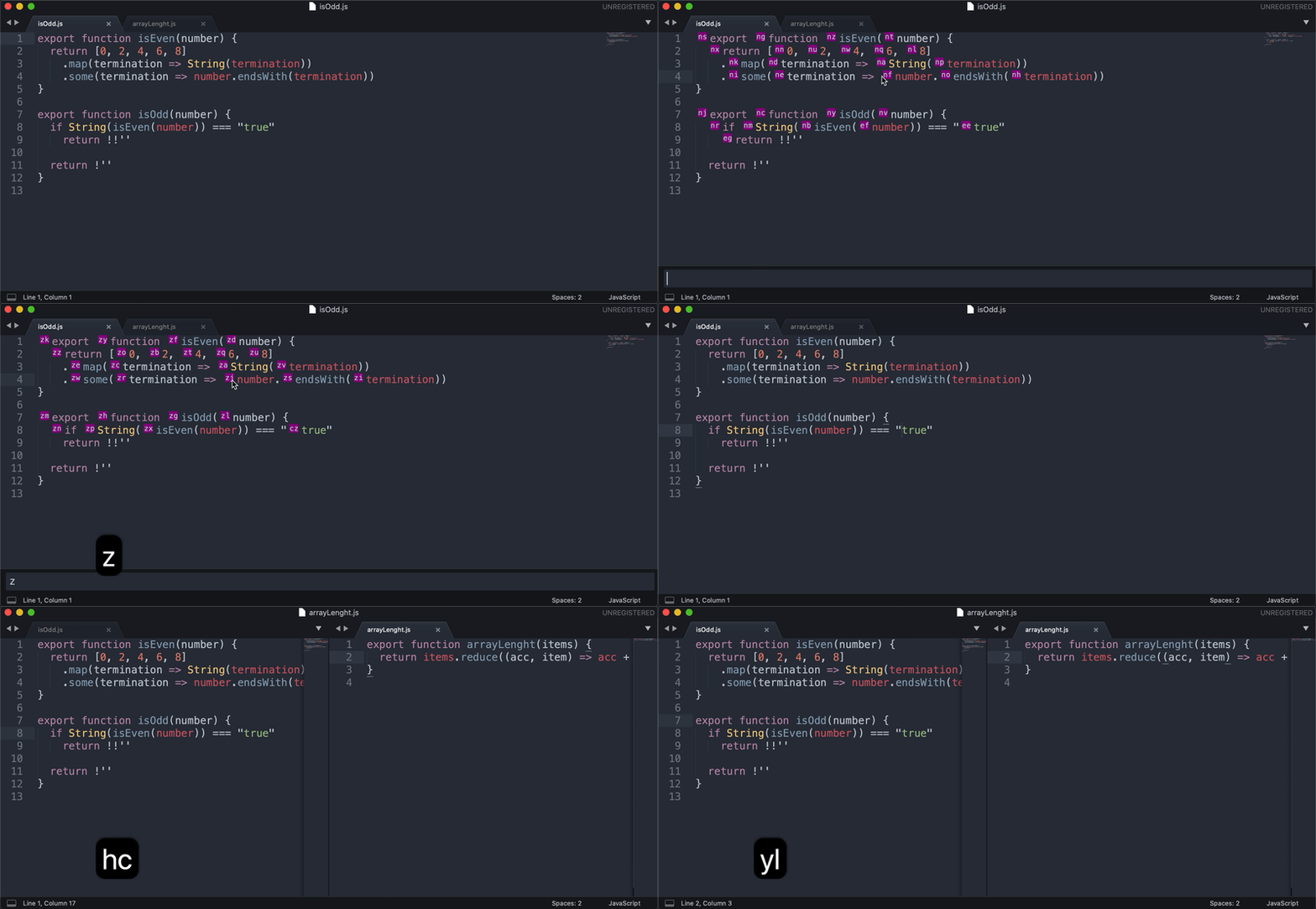
Jump to any word of any visible view in Sublime Text by typing a short label.
Usage
- Press your key binding (see Key binding): a label appears on every word, number and line end of the visible views.
- Type a label: the cursor moves to its target. Labels that no longer match are hidden as you type.
- Press
escape, or type a letter that matches no label, to cancel.
Instead of moving the cursor, Jumpy can also add a cursor or extend the selection to the label (see Actions).
Installation
Package Control: open the Command Palette (ctrl+shift+p, or cmd+shift+p on Mac), select Package Control: Install Package, then Jumpy.
Manually: clone this repository into the folder opened by Preferences: Browse Packages from the Command Palette, under the name Jumpy:
git clone https://github.com/jgburet/jumpy-sublime.git Jumpy
Key binding
Jumpy comes without a key binding: it does nothing until you add one.
Run Preferences: Key Bindings from the Command Palette and add this entry to the list in the right-hand file:
{ "keys": ["shift+enter"], "command": "jumpy", "context": [{ "key": "panel_has_focus", "operand": false }] },
Actions
The action argument sets what happens once a label is typed. Bind each one you use to its own keys, e.g.:
{ "keys": ["shift+enter"], "command": "jumpy", "context": [{ "key": "panel_has_focus", "operand": false }] },
{ "keys": ["alt+enter"], "command": "jumpy", "args": { "action": "add_cursor" }, "context": [{ "key": "panel_has_focus", "operand": false }] },
{ "keys": ["alt+shift+enter"], "command": "jumpy", "args": { "action": "select" }, "context": [{ "key": "panel_has_focus", "operand": false }] },
| Action | Effect |
|---|---|
"jump" (default) |
Replaces the selection with a cursor at the label. |
"add_cursor" |
Adds a cursor at the label, keeping the existing cursors and selections. |
"select" |
Selects from a cursor to the label, as shift+click does, and keeps the other cursors and selections. Labels are only shown in the active view. |
The label stands for the start of its target, so selecting forward stops before the target word and selecting backward includes it.
With "jump" and "add_cursor", a label in another view uses that view's own cursors.
Which cursor "select" starts from. Sublime does not tell which cursor is the most recent, so Jumpy compares the cursors with the ones left by its last action in the view:
- if exactly one cursor or selection was added since (e.g. with
cmd+clickor a double-click), the selection starts from it; - if none was added, it extends the region Jumpy placed last, so consecutive selections extend the same region;
- if several were added, nothing happens: the selection would be ambiguous.
Cursors are compared by position: after typing or moving several cursors, they all count as added. Press escape to get back to a single cursor.
Settings
Run Preferences: Jumpy Settings from the Command Palette, or use the menu Package Settings > Jumpy > Settings (under Sublime Text > Settings on Mac, Preferences elsewhere).
Settings can also be set in Preferences: Settings, or per syntax in Preferences: Settings - Syntax Specific, which takes precedence.
| Setting | Default | Description |
|---|---|---|
jumpy.mode |
"phantom" |
How labels are displayed: "phantom" or "edit" (see Display modes). |
jumpy.regex |
"$|\\d+(\\.\\d+)?|\\w+" |
Where labels are placed. Backslashes must be escaped, as in any JSON string. |
jumpy.selector |
none | Only keep the matches of jumpy.regex whose start matches this scope selector, e.g. "source - comment - string". |
jumpy.label_color |
color scheme's purple | Background color of the labels, in any CSS format, e.g. "#957FB8" or "purple". Shared by every view: syntax specific values are ignored. |
jumpy.label_css |
"font-size: 0.7rem;" |
Additional CSS of the labels in phantom mode. A background-color here overrides jumpy.label_color. Prefer color scheme variables so labels match your theme. |
Syntax specific settings let Jumpy behave differently in two files visible side by side. For example, to treat kebab-cased CSS properties as single words, open a CSS file, run Preferences: Settings - Syntax Specific and set:
{
	"jumpy.regex": "$|[\\w-]+",
}
Display modes
phantom(default): labels are drawn next to their target. The file is never edited, but the text shifts while labels are displayed.edit: labels are written over the beginning of their target, so the text does not move. The file is restored as soon as you jump or cancel, without touching its undo history or unsaved state. Its redo history is lost, though (see Edit mode details).
A file open in several views gets the same labels in each of them, and a single mode applies to all of them: the active view's when it shows the file, otherwise the one of the view in the first group. A label visible in several views moves the cursor in the active one.
Edit mode details
Labels. They are 2 characters long, 3 when there are more than 676 targets; the most cramped targets get the 2-character ones. Labels only overwrite characters up to the next target, tab or end of line. A target followed by less than 2 free characters (e.g. x in x\ty) shifts the text by one character.
Colors. Sublime only colors text through color schemes. When jumpy.label_color is set, Jumpy adds a rule for its jumpy.label scope to each color scheme you use, through files in Packages/User/Jumpy/ that Sublime merges with them. Your color schemes and their customizations are left untouched, and these files are emptied when the setting is unset. Labels displayed right after switching to a new color scheme may not be colored yet.
Interactions.
- Focusing a view (e.g. clicking in it) cancels the jump, so a file holding labels cannot be edited.
- Other plugins (linters, LSP) see the temporary edit.
- Labels are removed before the file is saved or closed.
- Labels are removed with an undo, which replaces the file's redo history: a redo right after a jump or cancel writes the labels back, and Jumpy no longer removes them. Undo them manually.
- If something else modifies the file while labels are displayed (e.g. a reload from disk), Jumpy does not restore it and shows an error dialog: undo the labels manually.
Uninstall
Remove the package, then delete Packages/User/Jumpy/ while Sublime Text is closed. Jumpy cannot remove this folder itself: Sublime fails to reload a color scheme whose merged file disappears while it runs. The folder only exists if jumpy.label_color was set in edit mode.
Credits
Inspired by Jumpy for Atom.