CodeContinue
LLM powered Sublime Text plugin to autocomplete inline code
By
kXborg
Created
Installations minus removals
Upgrades
- 484 installs
- 33 stars
Links
Versions
2.5.1
(>ST4000)
·
More
-
(>ST4000)
2.5.0
·
2026-10-18 09:27 -
2.4.0 ·
2026-08-17 02:14 -
2.3.0 ·
2026-08-03 18:59 -
2.2.0 ·
2026-06-28 11:13 -
2.1.0 ·
2026-05-25 03:05 -
2.0.0 ·
2026-03-24 16:32 -
1.1.4 ·
2026-02-19 16:23 -
1.1.3 ·
2026-02-13 15:43 -
1.1.2 ·
2026-02-11 17:49 -
1.1.0 ·
2026-02-06 01:47 -
1.0.5 ·
2025-12-30 13:34 -
1.0.0 ·
2025-12-30 11:15
CodeContinue - AI Code Completion for Sublime Text
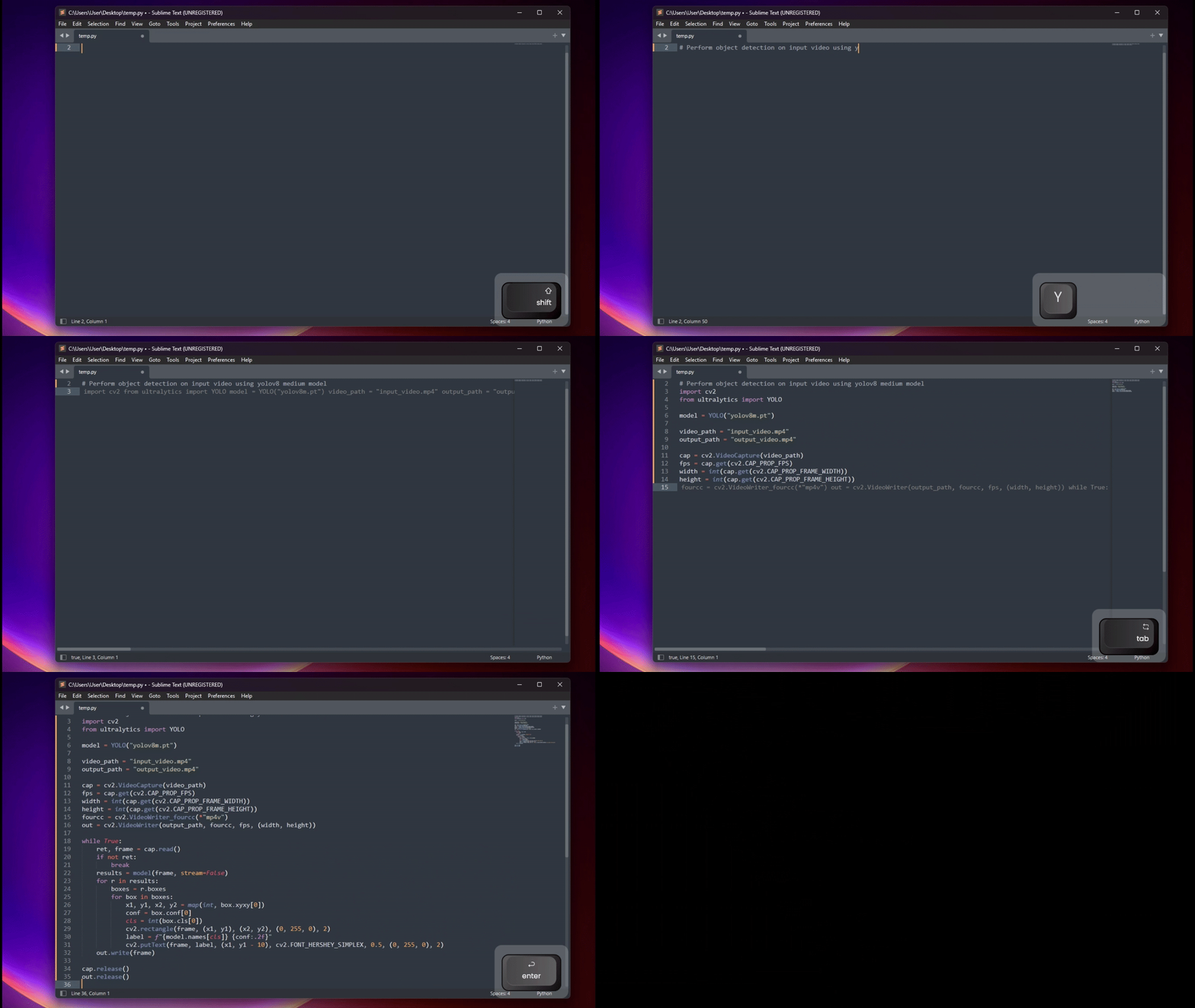
An LLM-powered Sublime Text plugin that provides intelligent inline code completion suggestions, in-place code editing, and code chat using OpenAI-compatible or Anthropic APIs. Check out the CodeContinue blog post here.
Features
- Fast Inline Code Completion: Fill-In-The-Middle (FIM) and suffix-aware bidirectional context slicing with automatic suffix deduplication for clean inline autocompletion.
- Real-Time Streaming Chat: Select code >> right-click >> CodeContinue: Chat about Selection to discuss code in an interactive split-view Markdown panel with live token streaming (Server-Sent Events).
- Interactive In-Place Edit & Diff Review: Select code >> right-click >> CodeContinue: Edit Selection to rewrite code using natural language instructions. Review proposed changes as a unified diff in a dedicated tab before applying.
- 1-Click Quick Action Presets: Instant right-click context menu and command palette presets:
- Explain Selection (detailed logic breakdown, edge cases, complexity)
- Find Bugs & Vulnerabilities (code review for bugs, bottlenecks, and security issues)
- Generate Unit Tests (comprehensive unit tests with edge-case coverage)
- Add Docstrings & Types (in-place type annotations and docstrings)
- Optimize & Clean Code (in-place refactoring for readability and performance)
- Dual-Engine Architecture: Mix-and-match models — e.g. use a fast local model for instant inline completions and a powerful cloud model (Claude 3.5 Sonnet or GPT-4o) for chat and editing.
- Status Bar Widget & Quick Model Switcher: Live status indicator in Sublime Text's status bar showing the active model and completion activity, plus
Ctrl+Shift+P>> CodeContinue: Switch Model... to change models on the fly. - Automatic Endpoint & Model Discovery: Paste your server address (e.g.
http://localhost:1234orhttps://api.openai.com); CodeContinue automatically normalizes the URL and detects available models from/v1/models. - Multi-Provider Support: Works out-of-the-box with OpenAI, Anthropic, LM Studio, Ollama, vLLM, and local OpenAI-compatible servers.
- Flexible Keyboard Shortcuts: Customizable keybindings (e.g.
Enterto suggest,TaborCtrl+Enterto accept).
Installation
Option 1: Install via Package Control (Recommended)
- Open the command palette via
Ctrl + Shift + P(orCmd + Shift + Pon macOS). - Type
Package Control: Install Packageand press Enter. - Search for
CodeContinueand press Enter to install. - Configure CodeContinue:
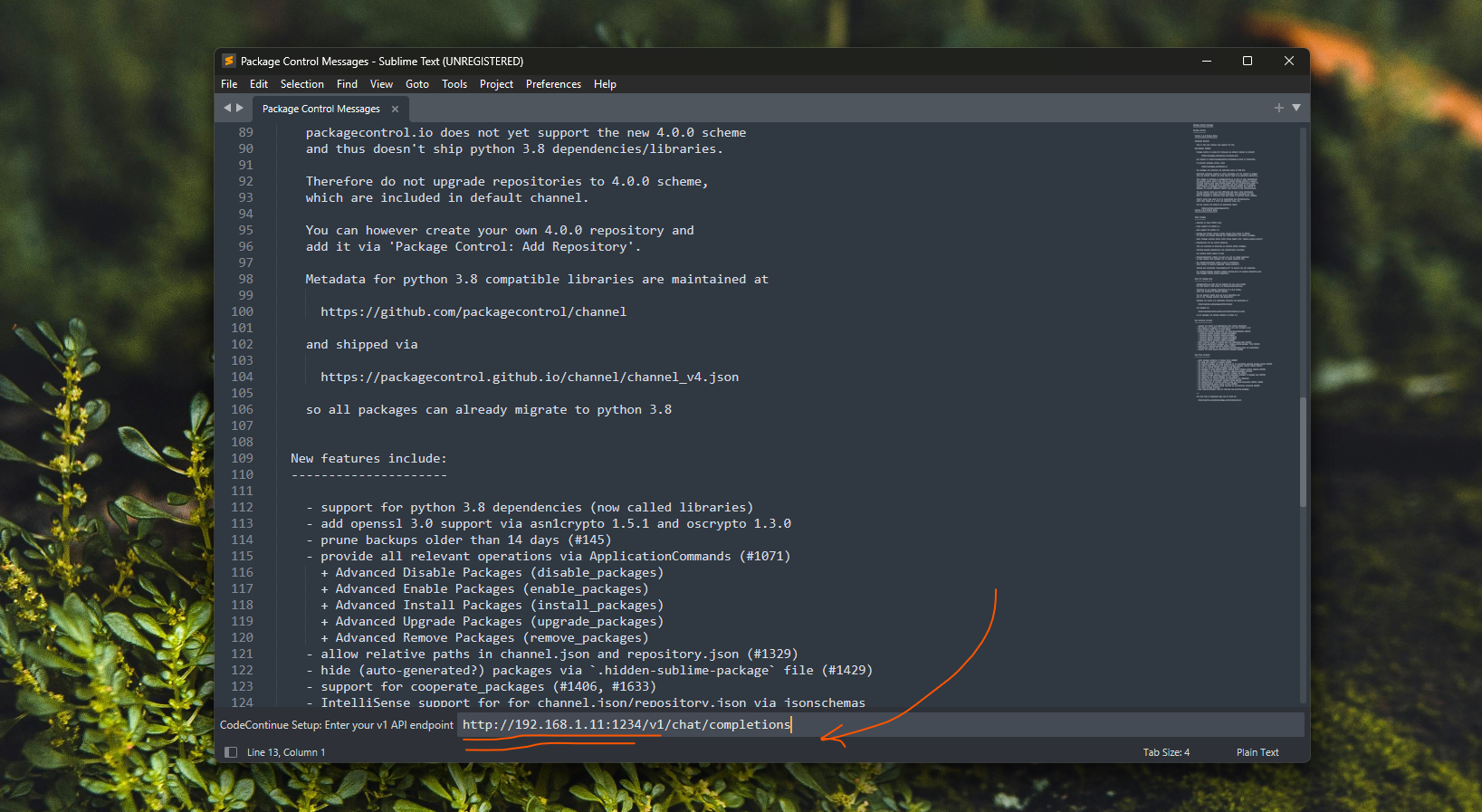
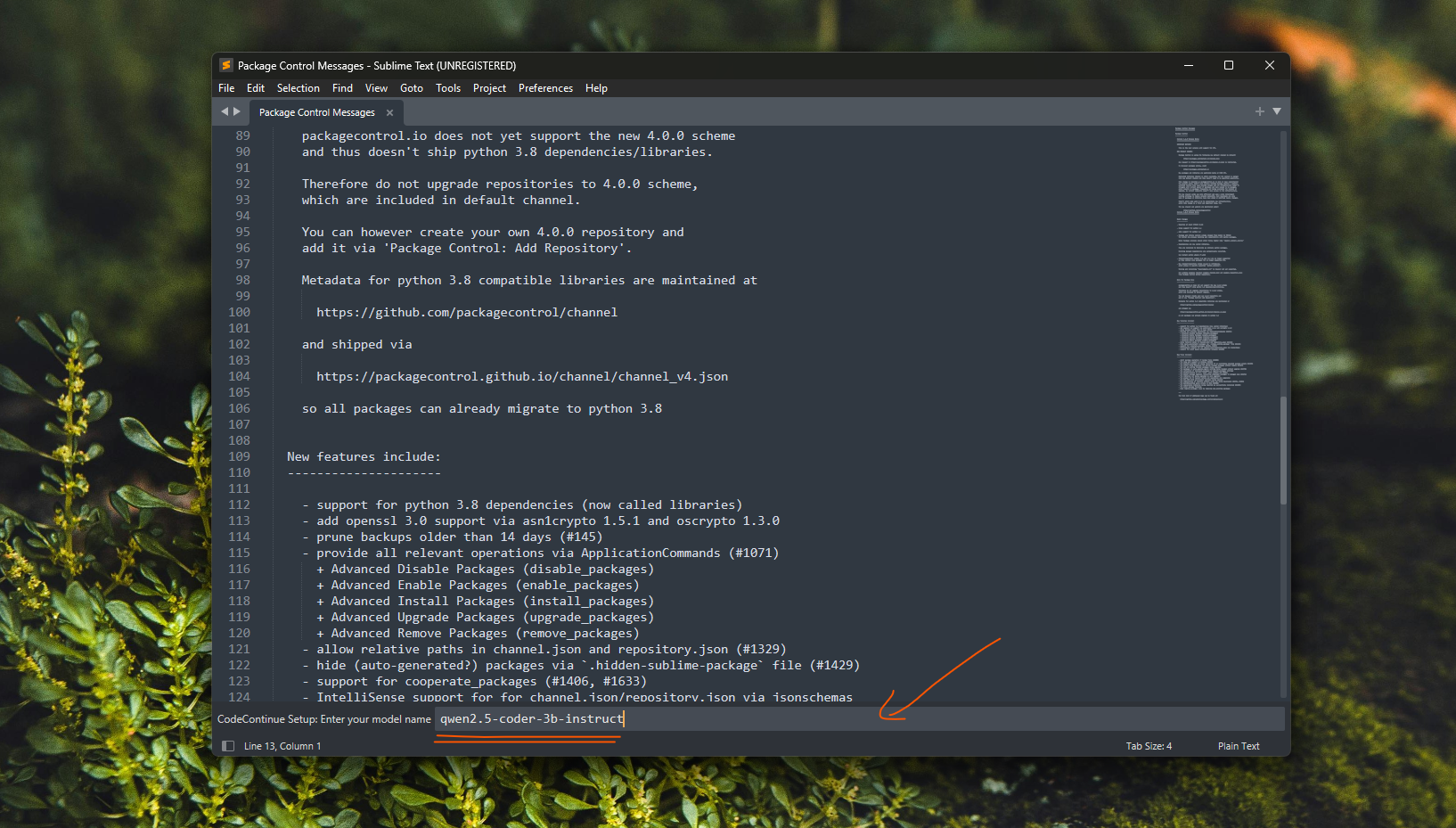
- The setup wizard appears automatically on first run (or run
Ctrl+Shift+P>>CodeContinue: Configure). - Enter your endpoint URL (e.g.
http://localhost:8000/v1/chat/completionsorhttps://api.openai.com). - Select your model from the auto-detected list or enter it manually.
- The setup wizard appears automatically on first run (or run
Enable Key Bindings
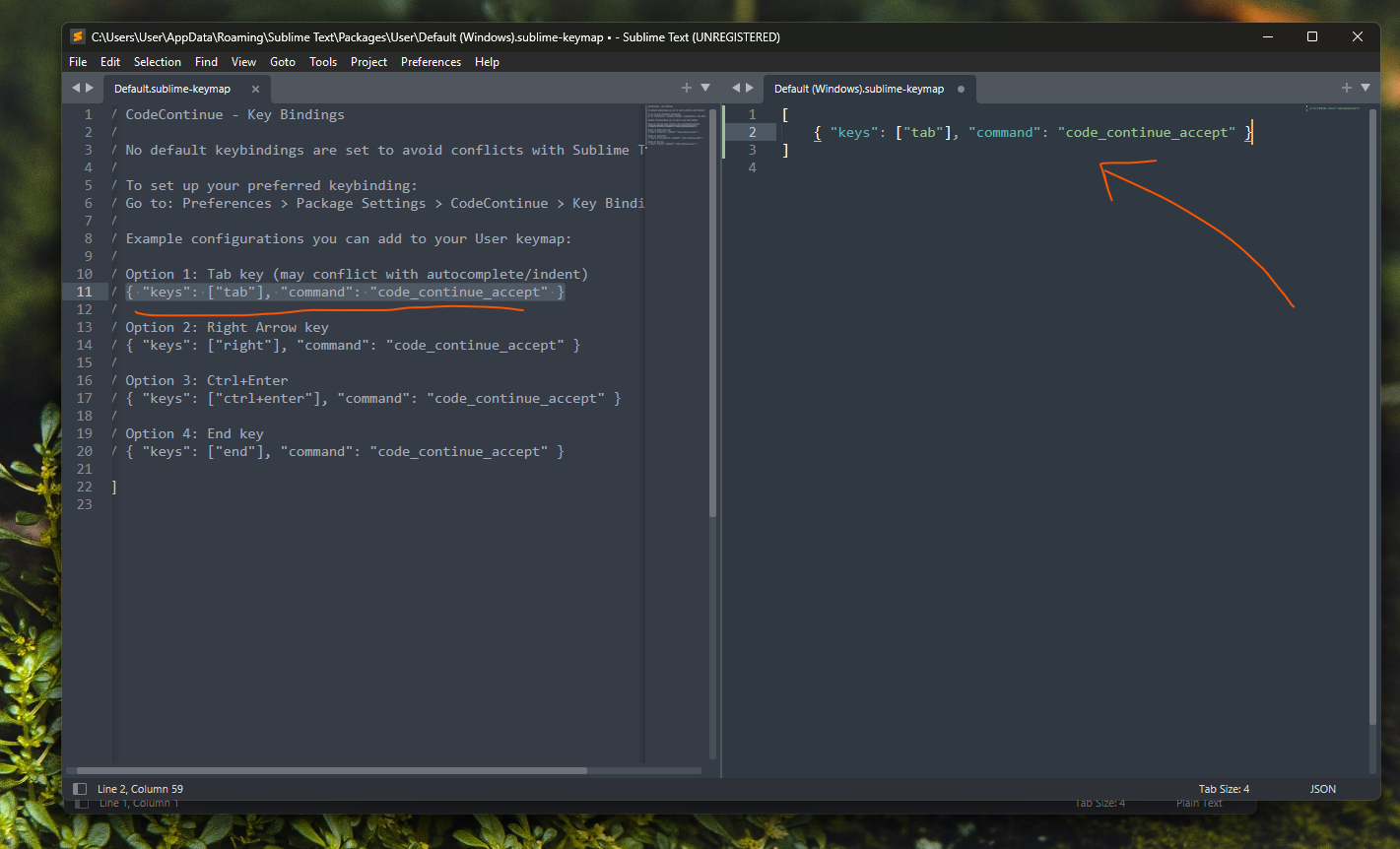
Keybindings are not enabled by default to prevent conflicts with existing packages.
To enable keybindings:
- Open the command palette (
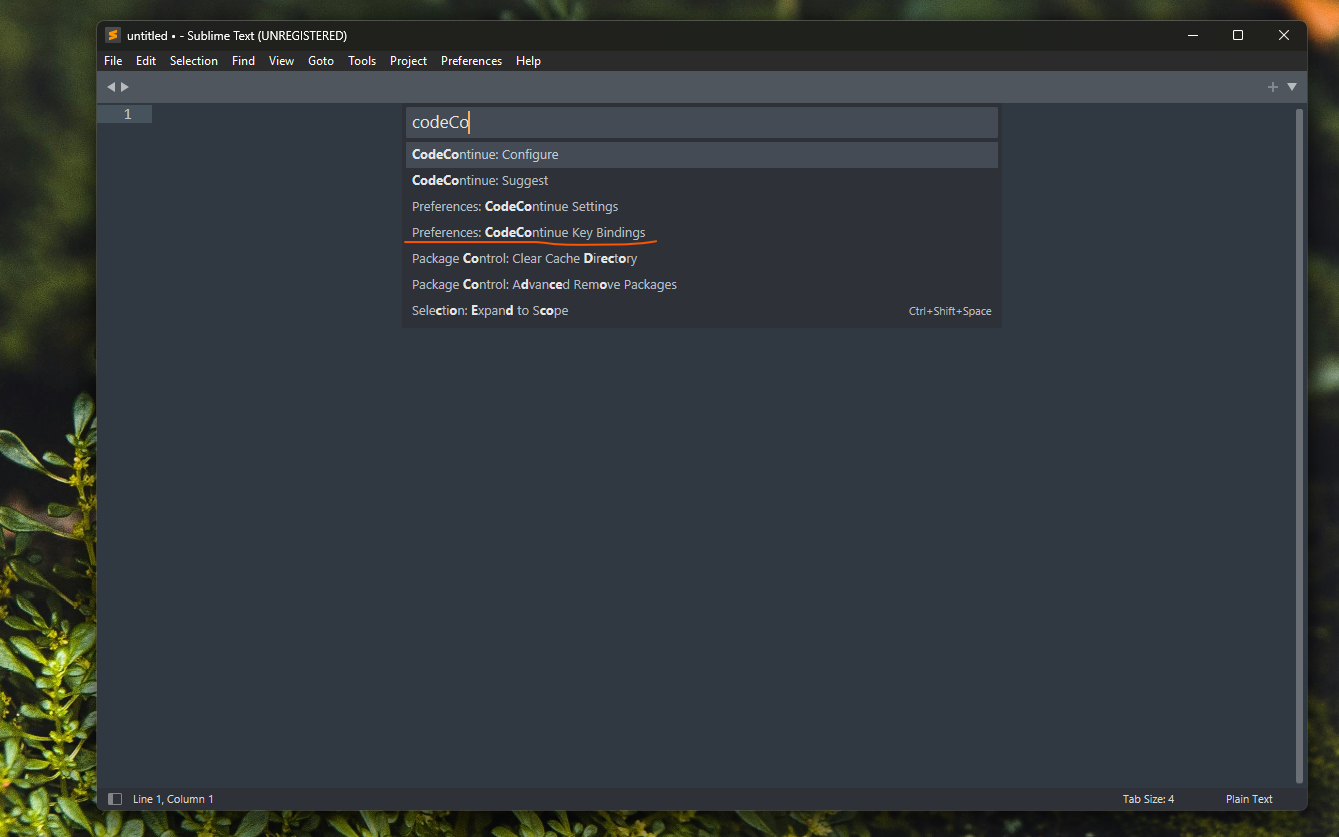
Ctrl + Shift + Pon Windows/Linux orCmd + Shift + Pon macOS). - Type
Preferences: CodeContinue Key Bindingsand press Enter. - This opens a split view. Copy the keybinding configuration from the left side (Default template) and paste it into the right side (User keymap file) inside the
[ ... ]list, then save (Ctrl + S/Cmd + S):
[
    // 1. Suggest on-demand with Ctrl+Enter:
    { "keys": ["ctrl+enter"], "command": "code_continue_suggest" },

    // 2. Accept suggestion with Tab (only triggers when a suggestion is visible):
    {
        "keys": ["tab"],
        "command": "code_continue_accept",
        "context": [
            { "key": "code_continue_visible", "operator": "equal", "operand": true }
        ]
    },

    // 3. Dismiss suggestion:
    {
        "keys": ["escape"],
        "command": "code_continue_dismiss",
        "context": [
            { "key": "code_continue_visible", "operator": "equal", "operand": true }
        ]
    }
]
Or if you prefer a single unified key (Ctrl+Enter for both suggest and accept):
[
    {
        "keys": ["ctrl+enter"],
        "command": "code_continue_accept",
        "context": [
            { "key": "code_continue_visible", "operator": "equal", "operand": true }
        ]
    },
    { "keys": ["ctrl+enter"], "command": "code_continue_suggest" }
]
Option 2: Manual Install (For Developers)
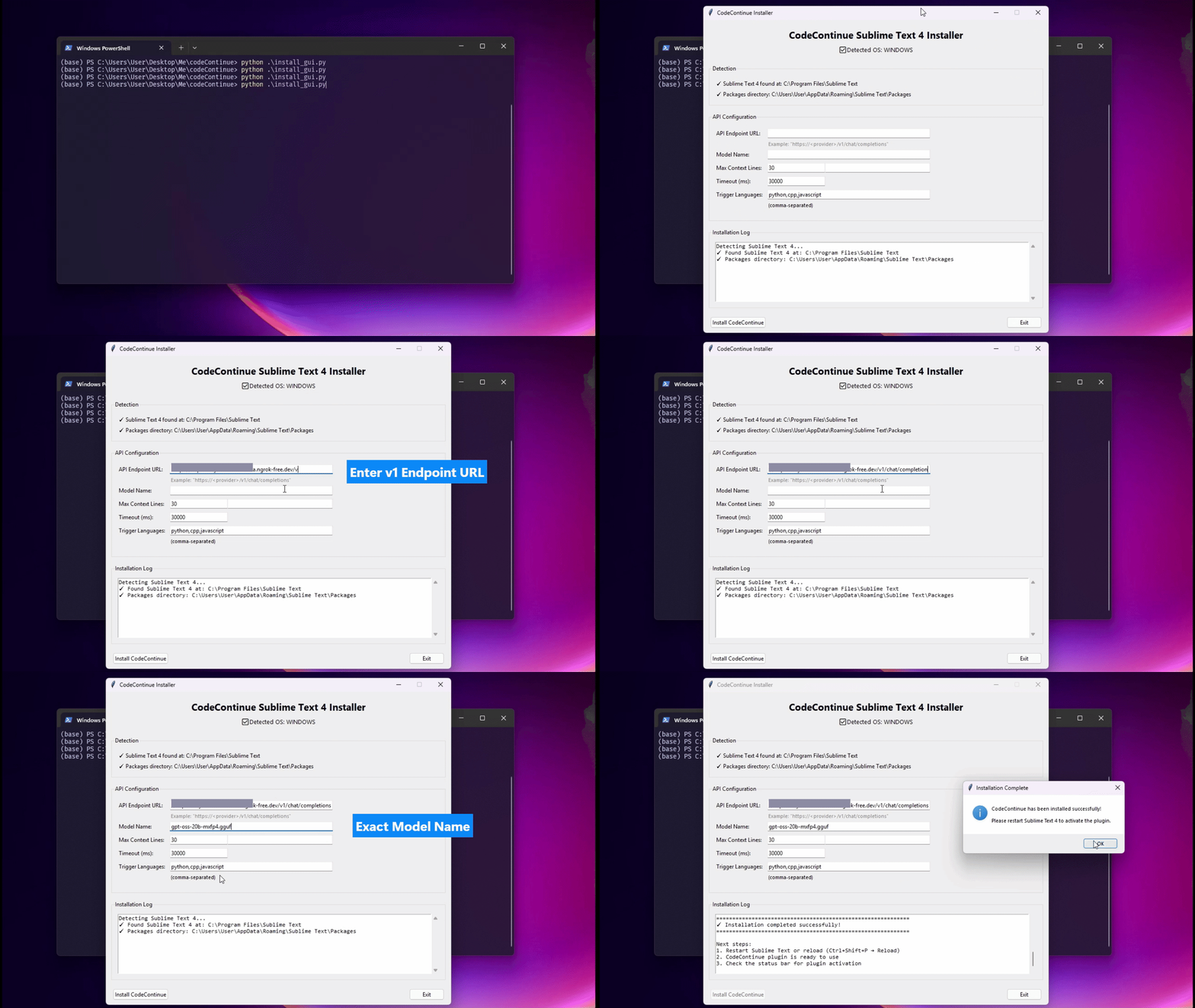
Click to view manual installation options
- Python CLI Installer
python tools/install.py
Interactive command-line installer with auto-detection, connectivity pre-flight check, and dynamic model discovery.
- GUI Installer
python tools/install_gui.py
Cross-platform Tkinter graphical installer with automatic model detection and customizable configuration.
Configuration
Click to expand configuration options
Settings are saved automatically in Packages/User/CodeContinue.sublime-settings. Reconfigure anytime via Ctrl+Shift+P >> CodeContinue: Configure or switch models via Ctrl+Shift+P >> CodeContinue: Switch Model....
endpoint: Your API endpoint URL (default:
http://localhost:8000/v1/chat/completions) - Required- Local Server (Ollama / LM Studio / vLLM):
http://localhost:8000(orhttp://localhost:8000/v1/chat/completions) - OpenAI:
https://api.openai.com(orhttps://api.openai.com/v1/chat/completions) - Anthropic:
https://api.anthropic.com(orhttps://api.anthropic.com/v1/messages)
- Local Server (Ollama / LM Studio / vLLM):
model: The model name for completions - Required
- Examples:
qwen2.5-coder:1.5b,gpt-4o,claude-3-5-sonnet-20241022
- Examples:
api_key: Authentication key (optional)
- Required for cloud providers (e.g.
sk-...for OpenAI,sk-ant-...for Anthropic). - Leave blank for local endpoints that do not require auth.
- Required for cloud providers (e.g.
chat_endpoint / chat_model / chat_api_key: Optional Dual-Engine overrides for Chat.
- Allows using a different model for chat (e.g.
claude-3-5-sonnet-20241022) while keeping a fast local model for completions. - If omitted, Chat inherits the global
endpoint,model, andapi_key.
- Allows using a different model for chat (e.g.
edit_endpoint / edit_model / edit_api_key: Optional Dual-Engine overrides for Edit Selection.
- Allows using a different model for code refactoring (e.g.
gpt-4o). - If omitted, Edit inherits the global
endpoint,model, andapi_key.
- Allows using a different model for code refactoring (e.g.
stream: Stream chat responses in real-time using SSE (default:
true).status_bar: Show active model name and suggestion activity in Sublime Text status bar (default:
true).confirm_edits: Require confirmation and unified diff review before applying code edits (default:
true).max_context_lines: Number of surrounding code lines sent to the model (default:
30).timeout_ms: Request timeout in milliseconds (default:
30000).trigger_language: Array of language scopes to enable completion for (e.g.
["python", "cpp", "javascript", "typescript", "go", "rust"]).auto_suggest_on_enter: Automatically trigger code suggestions on every Enter / newline press (default:
false). Whenfalse, suggestions are only requested on-demand via your shortcut (e.g.Ctrl+Enter) or Command Palette.system_prompt: Custom system prompt for inline completions.
- Leave blank (
"") to use the built-in default expert prompt. - Set a custom prompt to tune smaller models or suppress docstrings/comments.
- Leave blank (
debug: Enable debug logging (default:
false).- Set to
trueto view detailed request/response logs inView >> Show Console.
- Set to
Available Commands
Access these commands from the Command Palette (Ctrl+Shift+P / Cmd+Shift+P) or right-click context menu:
| Command | Context Menu | Description |
|---|---|---|
CodeContinue: Suggest |
— | Trigger code completion at cursor |
CodeContinue: Dismiss Suggestion |
— | Dismiss currently visible code suggestion |
CodeContinue: Switch Model... |
— | Switch model on the fly (Global, Chat, or Edit) |
CodeContinue: Configure |
— | Launch setup wizard to reconfigure endpoints and keys |
CodeContinue: Chat about Selection |
✓ | Open real-time streaming split chat for selected code |
CodeContinue: Explain Selection |
✓ | Preset: Break down logic, edge cases, and complexity in chat |
CodeContinue: Find Bugs & Vulnerabilities |
✓ | Preset: Analyze code for bugs, bottlenecks, and security issues |
CodeContinue: Generate Unit Tests |
✓ | Preset: Generate comprehensive unit tests with edge-case coverage |
CodeContinue: Edit Selection |
✓ | Prompt for instruction and rewrite selected code inline |
CodeContinue: Add Docstrings & Types |
✓ | Preset: Add clean docstrings and type annotations inline |
CodeContinue: Optimize & Clean Code |
✓ | Preset: Refactor code for readability, performance, and style |
Preferences: CodeContinue Settings |
— | Open user and default settings in a split view |
Preferences: CodeContinue Key Bindings |
— | Open keybinding configuration in a split view |
Requirements
- Sublime Text 4
- Python 3.8+ (bundled with Sublime Text 4)
- Access to a local LLM runner (LM Studio, Ollama, vLLM) or a cloud API (OpenAI, Anthropic, etc.)
Troubleshooting
Click to expand troubleshooting tips
Setup wizard not appearing
- Restart Sublime Text:
File >> Exit, then reopen. - Manually run:
Preferences >> Package Settings >> CodeContinue >> SettingsorCtrl+Shift+P>>CodeContinue: Configure.
Suggestions not appearing
- Check that the current file's syntax matches an entry in
trigger_language. - Verify your API endpoint is accessible.
- Enable debug logging (
"debug": true) and checkView >> Show Console. - Make sure keybindings are configured in
Preferences: CodeContinue Key Bindings.
Timeout errors
- Increase
timeout_msin settings (e.g.45000for larger local models). - Check that your local LLM server is running and responding.
Authentication or connection errors
- Verify your API key is correct.
- For local servers (LM Studio / Ollama), ensure the local server is started and listening on the configured port.
Advanced Configuration Examples
Click to expand provider configuration examples
Local LM Studio:
{
    "endpoint": "http://localhost:1234/v1/chat/completions",
    "model": "qwen2.5-coder-3b-instruct"
}
Local Ollama:
{
    "endpoint": "http://localhost:11434/v1/chat/completions",
    "model": "qwen2.5-coder:3b"
}
OpenAI:
{
    "endpoint": "https://api.openai.com/v1/chat/completions",
    "model": "gpt-4o",
    "api_key": "sk-your-openai-key"
}
Anthropic:
{
    "endpoint": "https://api.anthropic.com/v1/messages",
    "model": "claude-3-5-sonnet-20241022",
    "api_key": "sk-ant-your-anthropic-key"
}
Dual-Engine (Local Autocomplete + Cloud Chat & Edit): Run a fast local model for low-latency autocompletions, and route complex chat discussions or code refactoring to Claude 3.5 Sonnet or GPT-4o:
{
    // Fast local engine for inline completions
    "endpoint": "http://localhost:8000/v1/chat/completions",
    "model": "qwen2.5-coder:1.5b",

    // Cloud engine for chat about code
    "chat_endpoint": "https://api.anthropic.com/v1/messages",
    "chat_model": "claude-3-5-sonnet-20241022",
    "chat_api_key": "sk-ant-your-anthropic-key",

    // Cloud engine for in-place code editing / refactoring
    "edit_endpoint": "https://api.openai.com/v1/chat/completions",
    "edit_model": "gpt-4o",
    "edit_api_key": "sk-your-openai-key"
}
License
See LICENSE file for details.