ACP
ACP (Agent Client Protocol) plugin for Sublime Text editor
By
debjan
Created
Installations minus removals
Upgrades
- 29 installs
- 6 stars
Links
Versions
1.9.0
(>ST4049)
·
ACP - Agent Client Protocol for Sublime Text
Use AI coding agents (Kiro, Opencode, Pi, Droid, Claude Code, Copilot, …) directly from Sublime Text via the Agent Client Protocol.
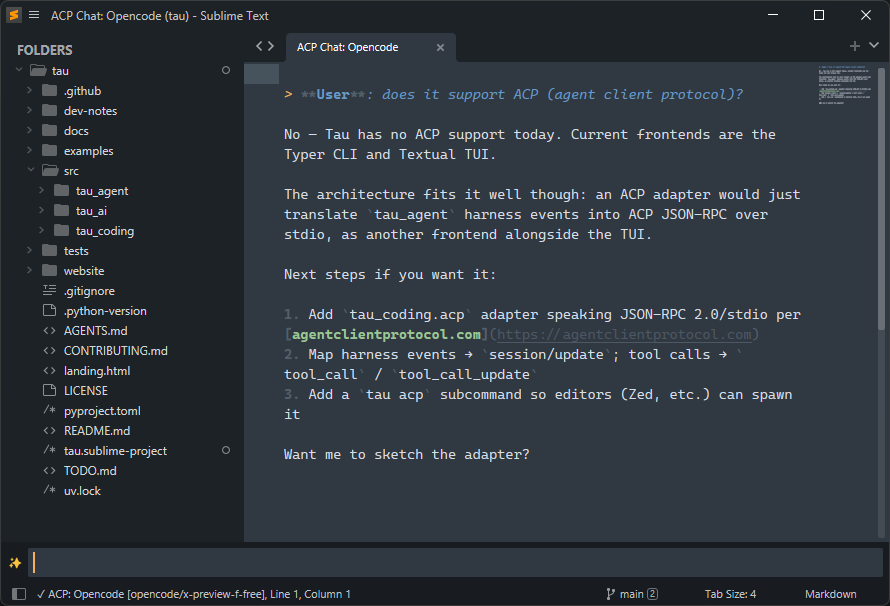
Installation
Easiest way is to install via Package Control.
For manual installation clone or copy this package into your Sublime Text Packages/ directory, then restart Sublime Text.
Quick Start
One-shot prompt
Ctrl+Shift+P-> "ACP: Prompt"- Pick an agent from the quick panel (skipped if only one is configured)
- Type your prompt in the input panel - use
@for file autocompletion,/for agent slash commands - Press Enter - the response streams into a new tab
Persistent chat session (daemon)
Ctrl+Shift+P-> "ACP: Session Start"- Pick an agent - a spinner shows while the agent initializes
- Once ready, a dedicated "ACP Chat: Agent Name" tab opens
- Send prompts via "ACP: Prompt" - responses accumulate in the chat tab
- Stop the session with "ACP: Session Stop"
The daemon auto-terminates after 15 minutes of inactivity (configurable).
Switch sessions mid-session
Ctrl+Shift+P-> "ACP: Switch Session" - while a daemon is running, pick from the agent's recent sessions (viasession/liston the live connection, filtered by the current working directory, capped bysession_list_limit) and switch the daemon to it.Ctrl+Shift+P-> "ACP: Session Rename" - set a title for the current session. Title is stored client-side and shown in "ACP: Switch Session". Leave the field empty to clear it.
Walkthrough
For quick walkthrough visit walkthrough.md
Configuration
Edit ACP.sublime-settings (Preferences -> Package Settings -> ACP -> Settings):
{
  // Agents you want to use
  "commands": [
    { "title": "Claude Code", "cmd": "claude-agent-acp" },
    { "title": "Opencode", "cmd": "opencode", "args": ["acp"] },
  ],

  // Quick actions (palette: ACP: Actions, sent with selected text)
  "actions": [
    { "title": "Explain", "prompt": "Explain in simple terms" },
    { "title": "Summarize", "prompt": "Summarize with key points" },
  ],

// ...

}
For available options see configuration.md.
Commands
| Palette Command | Keybinding | Description |
|---|---|---|
| ACP: Prompt | Alt+Shift+A |
One-shot prompt (or send to daemon) |
| ACP: Session Start | Ctrl+Alt+A |
Start a persistent agent daemon |
| ACP: Session Stop | Ctrl+Alt+Shift+A |
Terminate the running daemon |
| ACP: Interrupt Current Prompt | Ctrl+Break |
Cancel the in-flight prompt (daemon only) |
| ACP: Actions | - | Run a quick action on the selected text |
| ACP: Session Fork | - | Fork the current session |
| ACP: Session Rename | - | Set a local title for the current session |
| ACP: Switch Mode | - | Change session mode mid-session |
| ACP: Switch Model | - | Change model mid-session |
| ACP: Switch Session | - | Switch the running daemon to a recent session |
| ACP: Switch Thought Level | - | Change reasoning effort mid-session |
To enable keyboard shortcut open "Preferences -> Package Settings -> ACP -> Example Key Bindings".
Switching model, mode, or thought level
While a daemon session is active, ACP: Switch Model, ACP: Switch Mode, and ACP: Switch Thought Level show a quick panel populated from the agent's advertised options. The current selection is marked with ✓. These commands are only enabled when the active agent supports the corresponding option.
Requirements
- Sublime Text 4+
- One or more ACP-compatible agents installed
Documentation
Deeper dives live in docs/index.md: daemon architecture, permissions and the file walker, completions, and full settings reference.
License
MIT